Quick start guide
From sign-up to first payroll in eight steps.
Timedigo records when your team starts and ends work on a shared iPad or Android tablet (a Mobile Device) and turns it into timesheets. Set it up once in this web dashboard; after that, most days you only check the Overview.
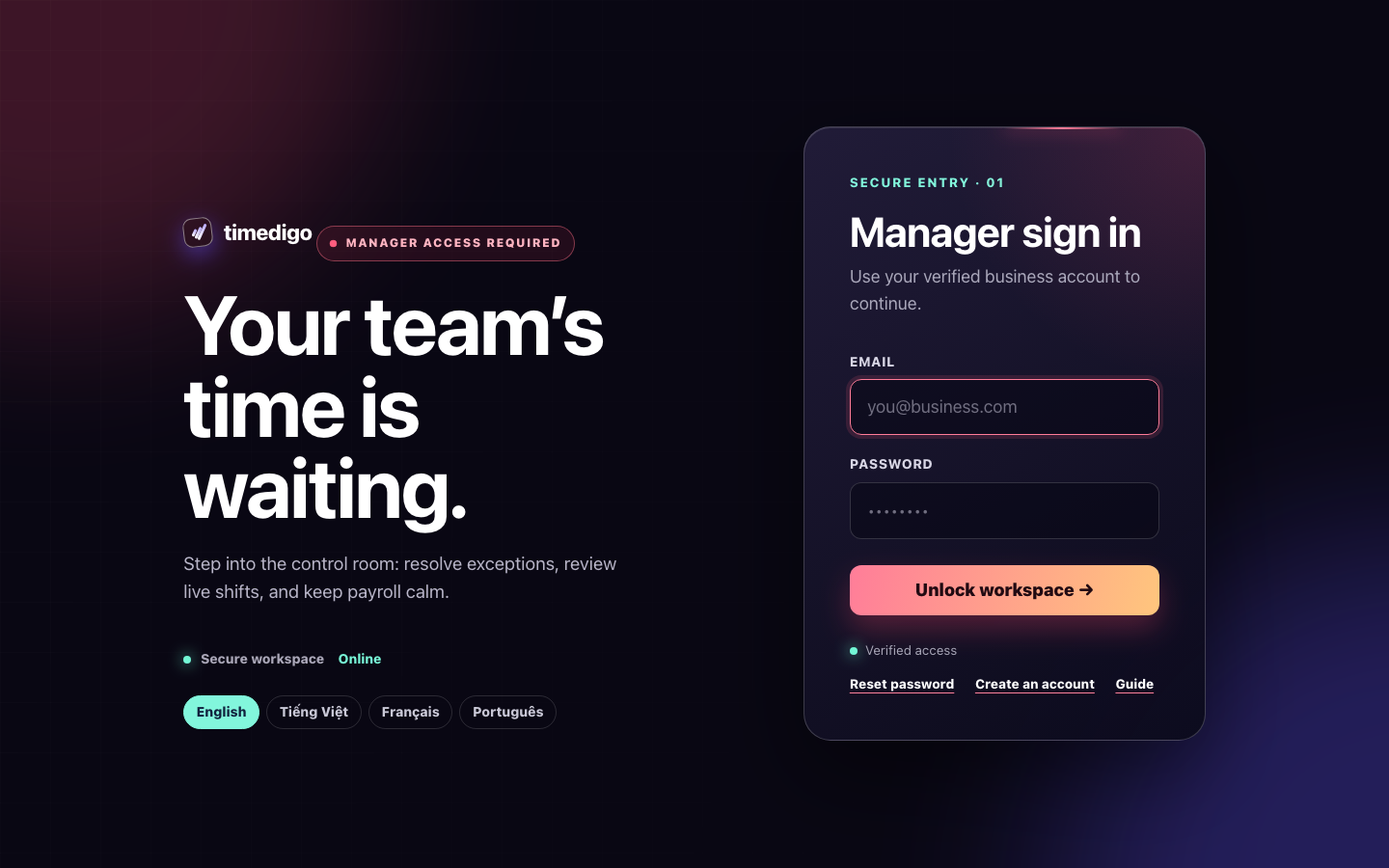
Sign in
- Open the sign-in page. New business? Choose Create an account, fill in your business and first location, then open the activation link we email you. Your one-month trial starts then.
- Already invited by an owner? Open the invitation email, choose a password, and you are in.
- Otherwise sign in with your email and password. Forgot it? Use Reset password.
Set up payroll rules and access Settings · owner only
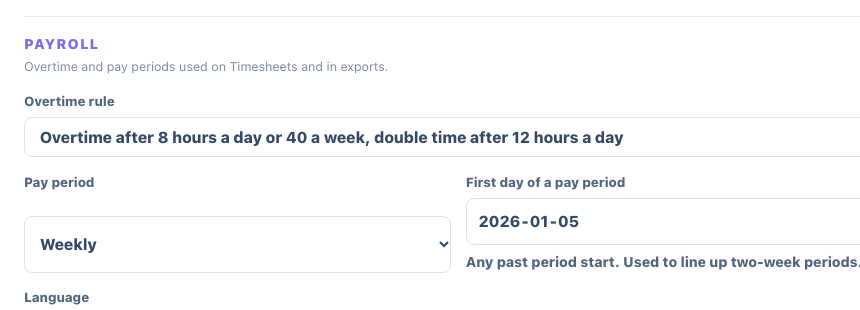
- Check the Overtime rule. In British Columbia it must be “8 hours a day or 40 a week, double time after 12”; Timedigo picks this for BC businesses and warns you if it is changed.
- Choose a Pay period: weekly or every two weeks.
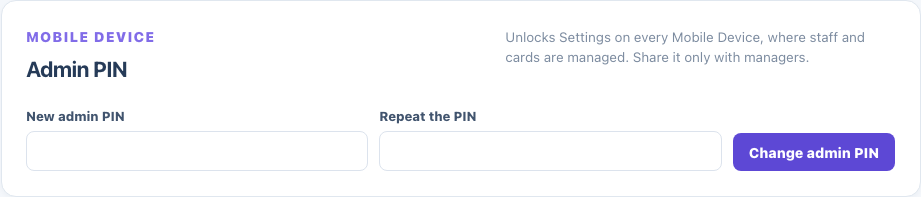
- Set the Admin PIN. Managers type it to open Settings on a Mobile Device. Share it only with managers.
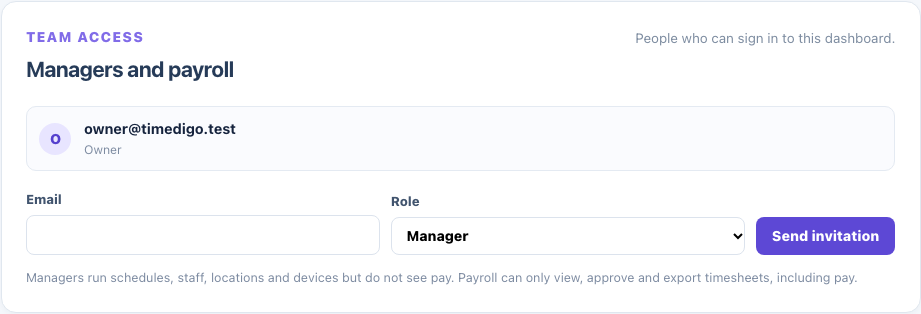
- Under Team access, invite other people by email: Manager runs schedules, staff and devices but does not see pay; Payroll only approves and exports timesheets, with pay.
Set up your location Locations
- Enter the weekly business hours. A closing time after midnight is marked “Next day” automatically.
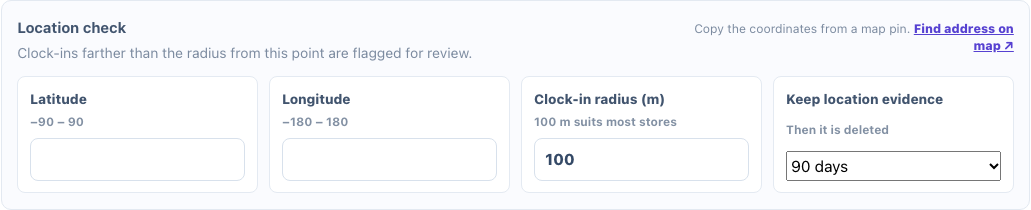
- Fill in Latitude and longitude (use Find address on map, then copy them from the map pin) and a clock-in radius. Clock-ins farther away are flagged for you, never refused.
- Keep the grace periods at about 15 minutes so a cook arriving at 8:50 for a 9:00 opening is not flagged.
- Choose the Clock-in method: PIN only, Card or PIN, or Card + PIN (stops staff from clocking in with someone else’s card).

Add your team Team
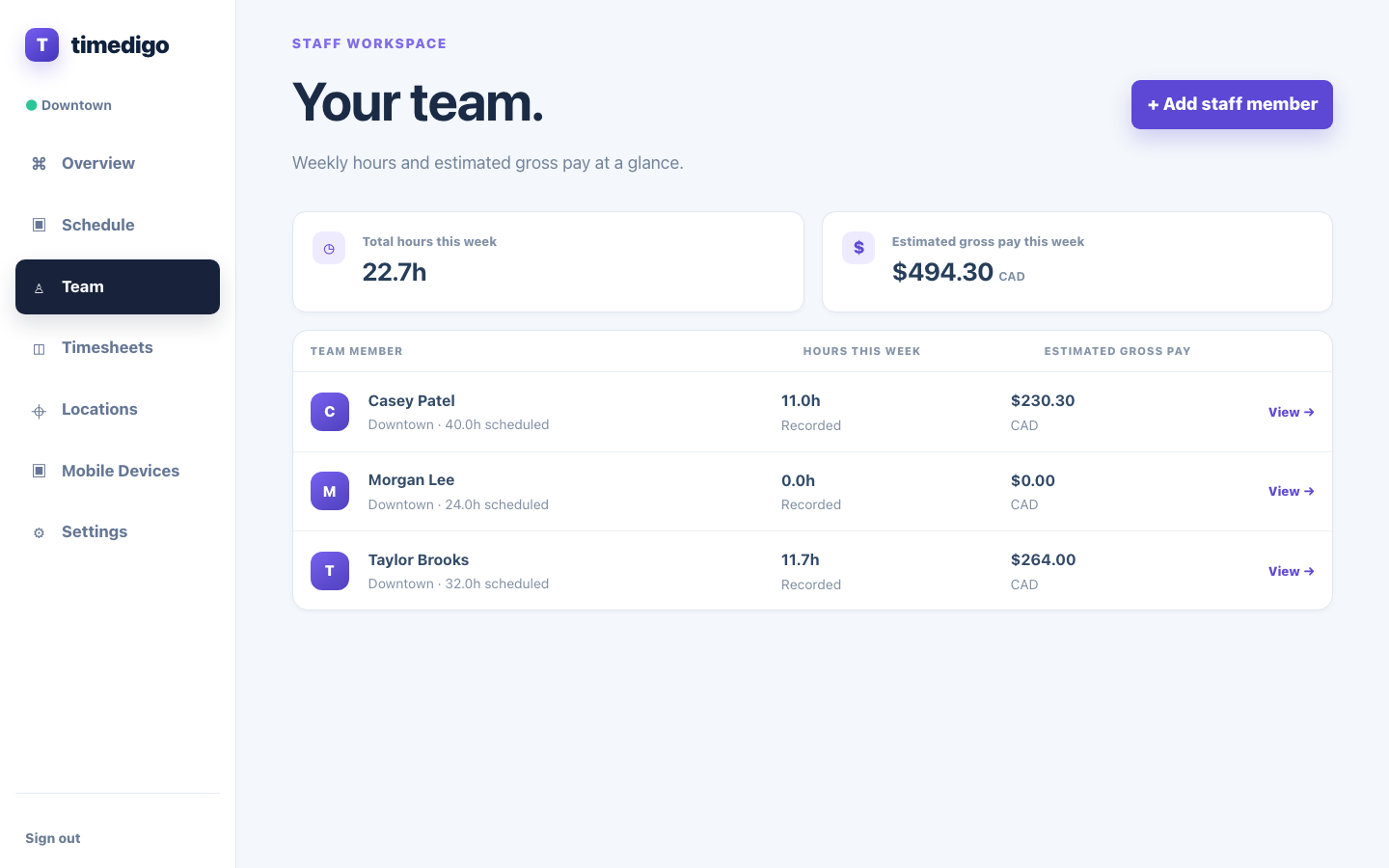
- Choose + Add staff member, enter their name and a 4–8 digit PIN, and (owners) their hourly rate.
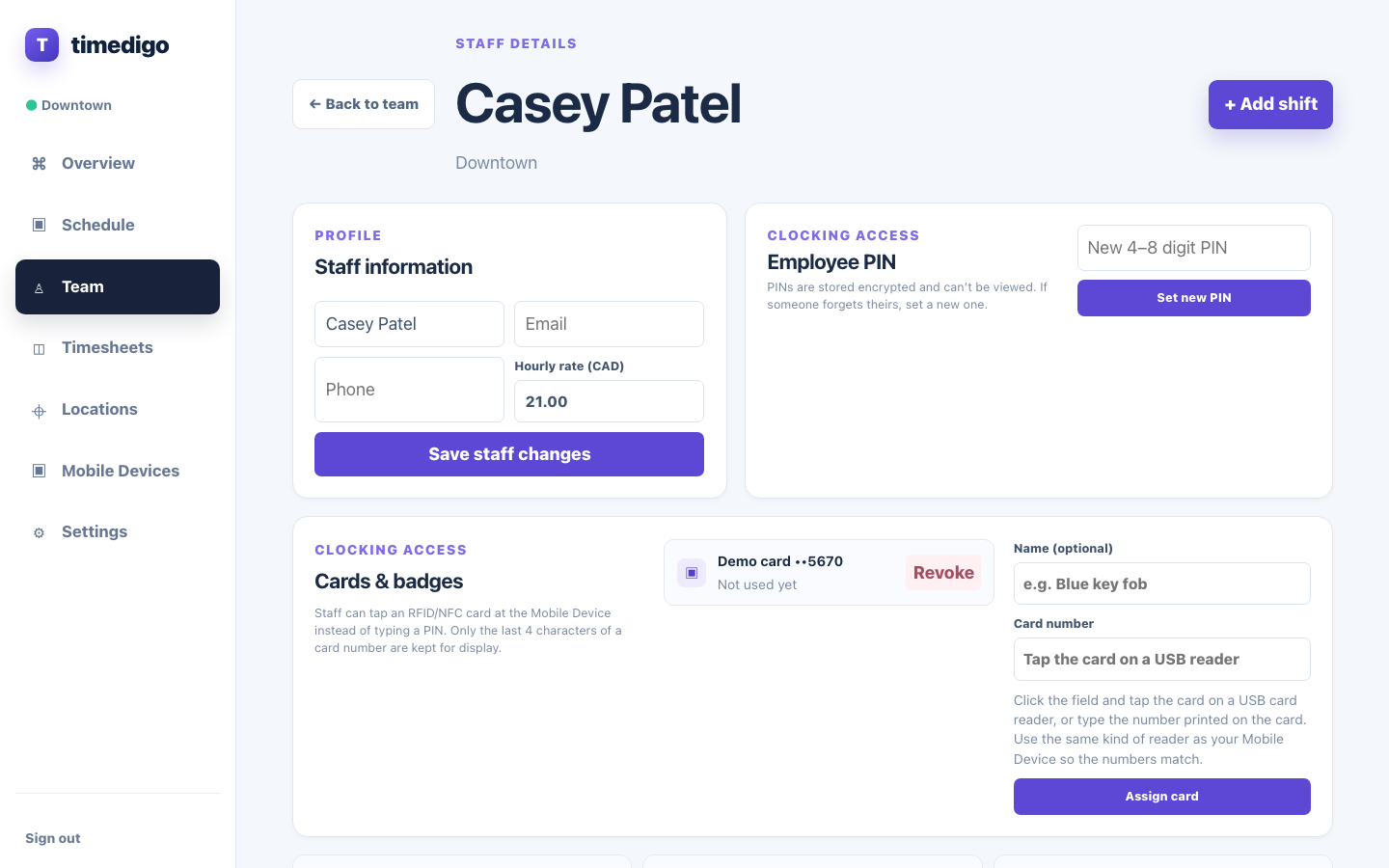
- Open a person to edit their details, set a new PIN, or add repeating shifts for each weekday.
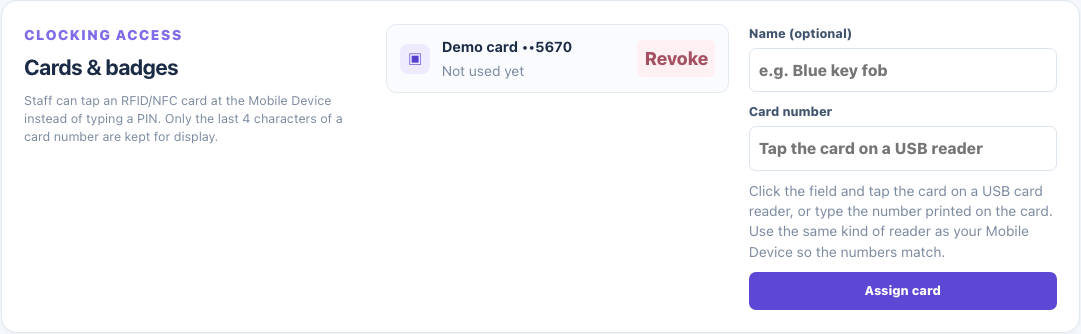
- Using cards? On the staff page, click Card number and tap the card on a USB reader, then Assign card. Lost cards are removed with Revoke.
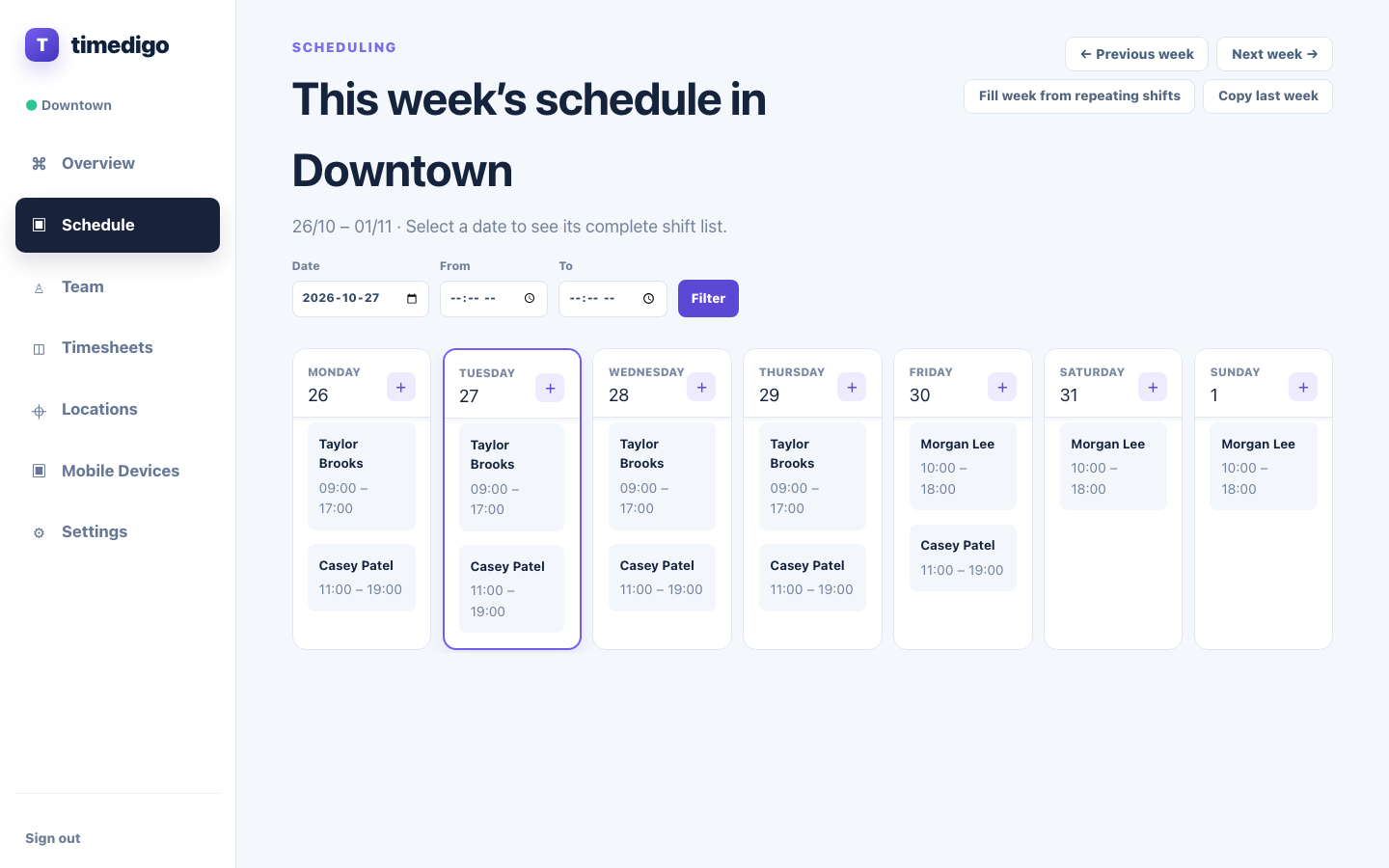
Schedule shifts Schedule
- Choose Fill week from repeating shifts to add everyone’s regular shifts, or Copy last week.
- Use + on a day to add a one-off shift; click a day to edit or delete its shifts.
- Fix anything listed under Check this week’s schedule: people over 40 hours, with no day off, or shifts on a day the location is closed.
Pair a Mobile Device Mobile Devices
- Install the Timedigo app on the iPad or Android tablet staff will use, and accept the terms.
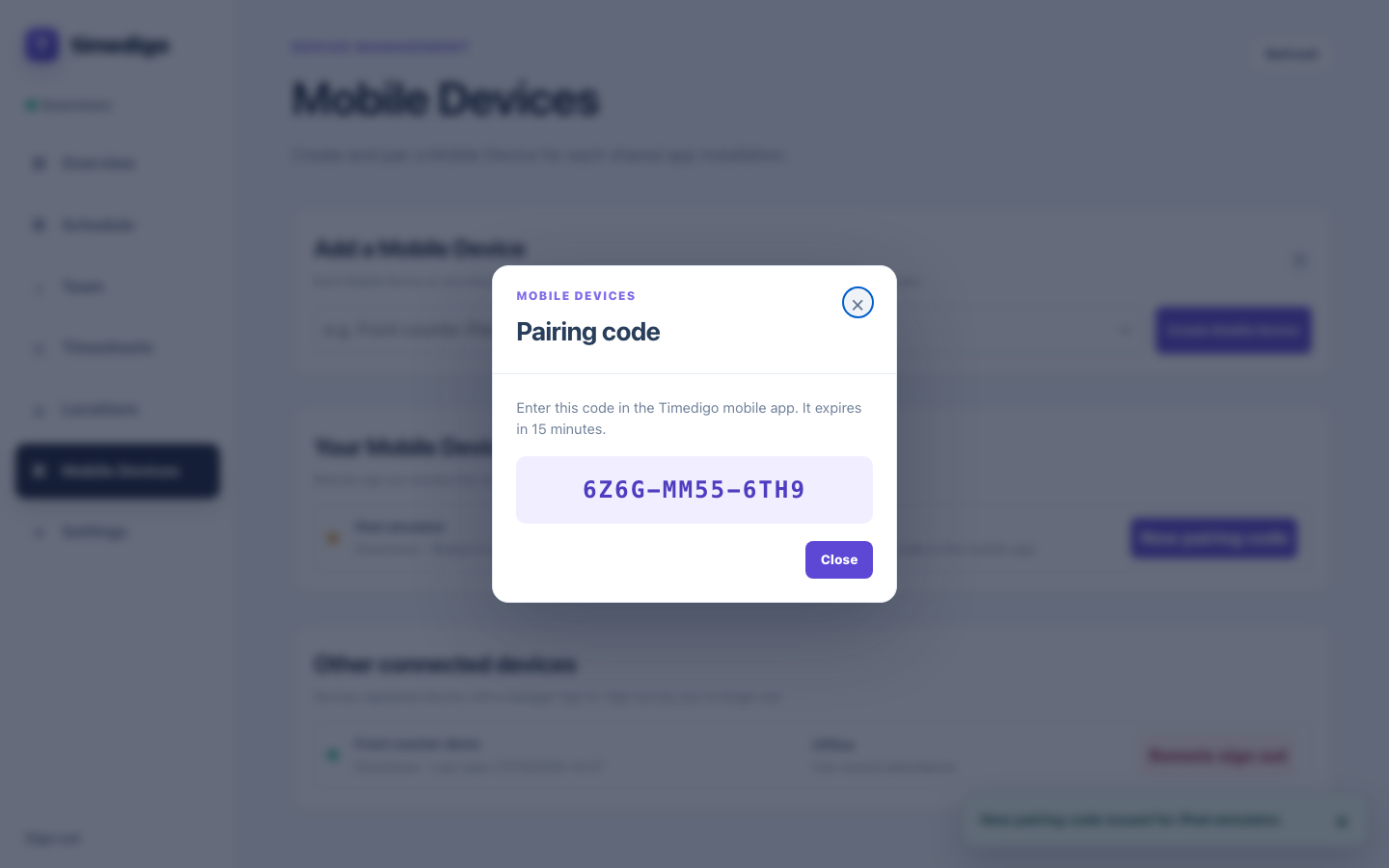
- In the dashboard, under Add a Mobile Device, name it (for example “Front counter iPad”), pick its location and choose Create.
- Type the pairing code into the app within 15 minutes. The device then shows your business and the PIN pad.
- Using a card reader? Plug a USB card reader into the iPad (through a USB-C hub that also charges it) or pair a Bluetooth one. Android tablets with NFC need no reader.
Check in every day Overview
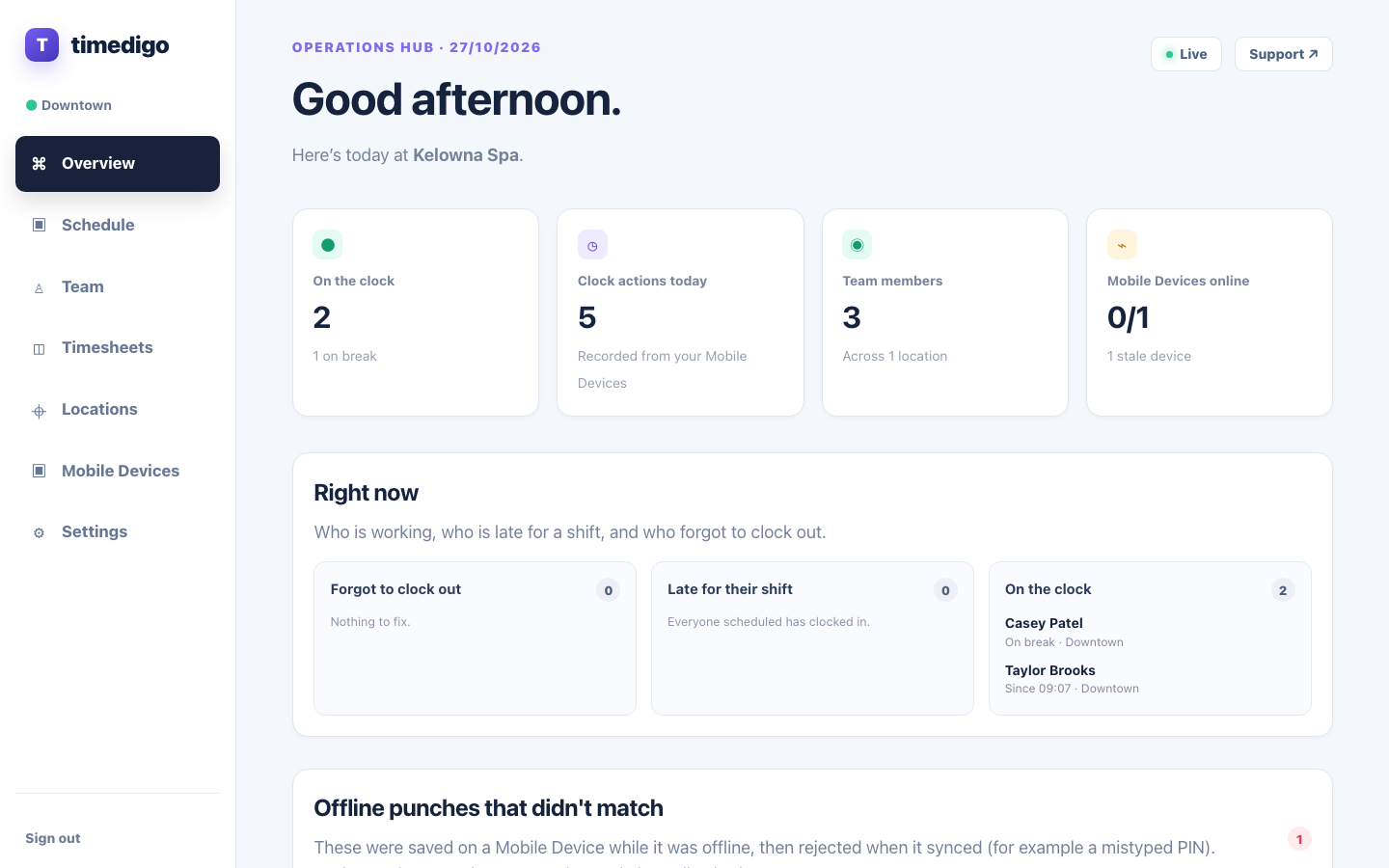
Staff tap their card or type their PIN on the Mobile Device, then choose Clock in, Start break, End break or Clock out. On the Overview:
- Right now shows who is working, who is late for a shift, and who forgot to clock out. Choose Record clock-out next to a forgotten one and enter when they really left.
- Needs your review lists punches outside business hours, far from the location, or closed automatically. Check each and choose Mark reviewed.
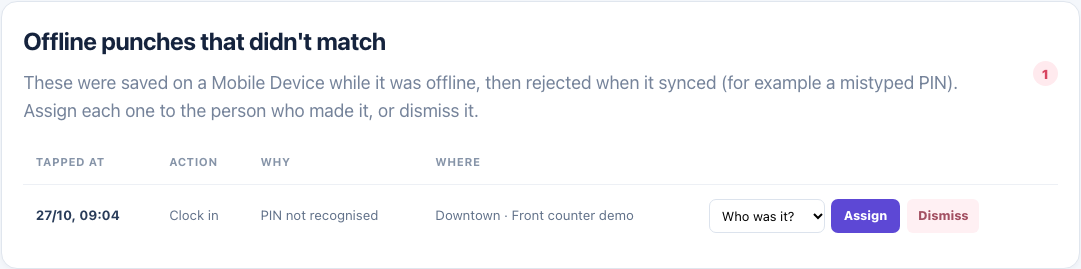
- Offline punches that didn’t match appear after a device was offline and someone mistyped their PIN. Pick who it was and choose Assign, or Dismiss.
- Any other wrong or missing punch: open Record a correction, pick the person, action and real time, and give a reason.
Approve and export hours Timesheets · owner or payroll
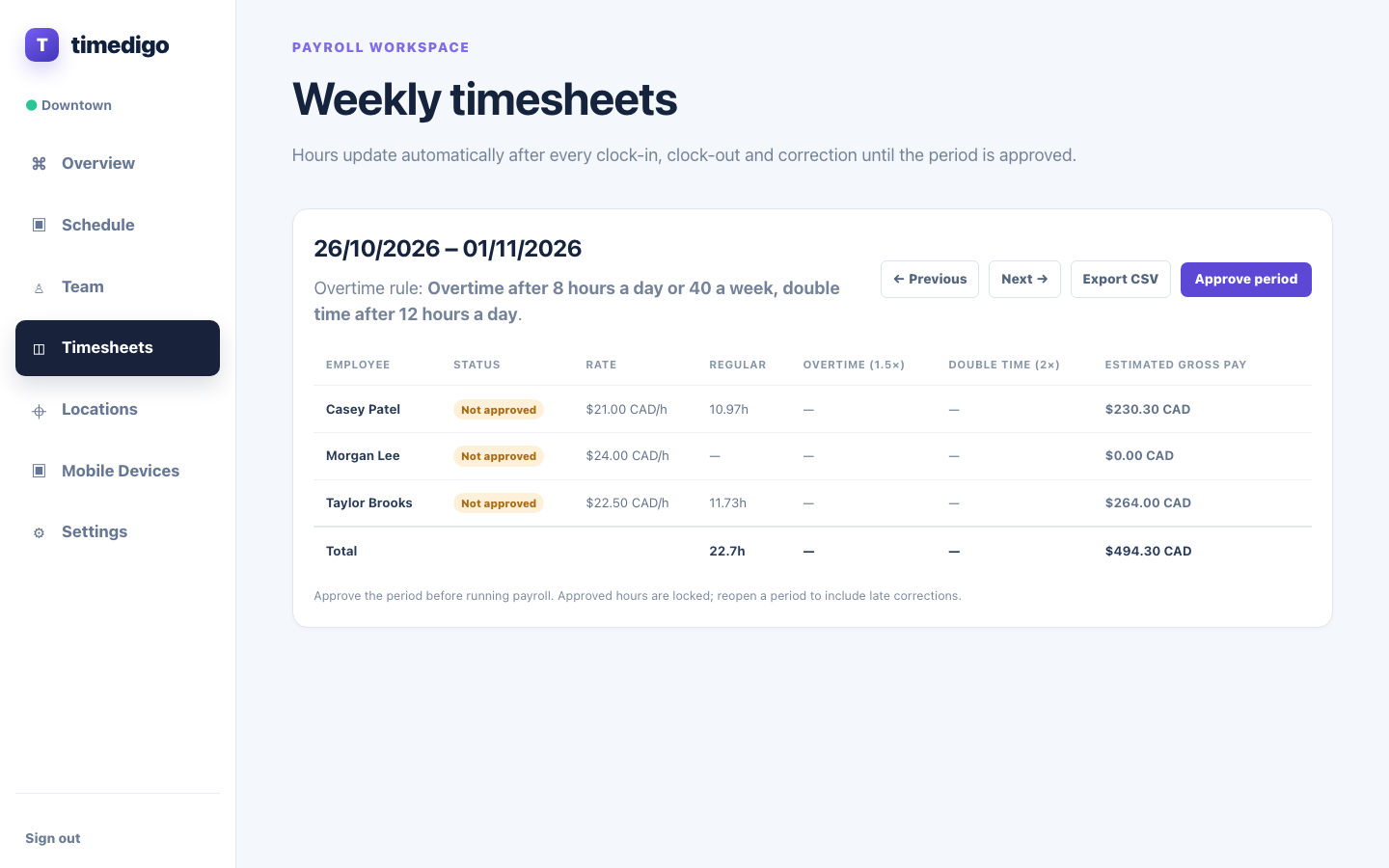
- At the end of the pay period, open Timesheets and check each person’s regular, overtime and double-time hours.
- Choose Approve period. Approved hours are locked, so late punches can’t change payroll after the fact.
- Choose Export CSV and give it to your payroll provider.
- A late correction? The row shows Changed since approval. Choose Reopen, check it, and approve again.
Common questions
What happens when the internet is down?
The Mobile Device keeps working. Punches are saved securely on the device with the time they were made and sent automatically when the connection is back; the PIN pad shows how many are waiting. If one can’t be matched (for example a mistyped PIN), it appears on your Overview to assign.
Someone forgot their PIN.
Open them under Team and set a new PIN. For security, existing PINs can’t be viewed.
A card was lost.
Open the person under Team and choose Revoke next to the card. It stops working on every device straight away. Assign a new card the same way as before.
Someone clocked in at the wrong time or forgot to clock out.
On the Overview, open Record a correction (or choose Record clock-out next to the person under “Forgot to clock out”). Enter the real time and a short reason. The original punch is kept for your records and timesheets update automatically.
The Mobile Device says “too many wrong PINs”.
After several wrong PINs in a row the device pauses PIN entry for a minute or more. Wait for the countdown; staff with cards can still tap in (unless the location uses Card + PIN).
Who can see pay rates?
Only the owner and people with the Payroll role. Managers see hours but not pay.
Still stuck? Call support at 236-998-9029.